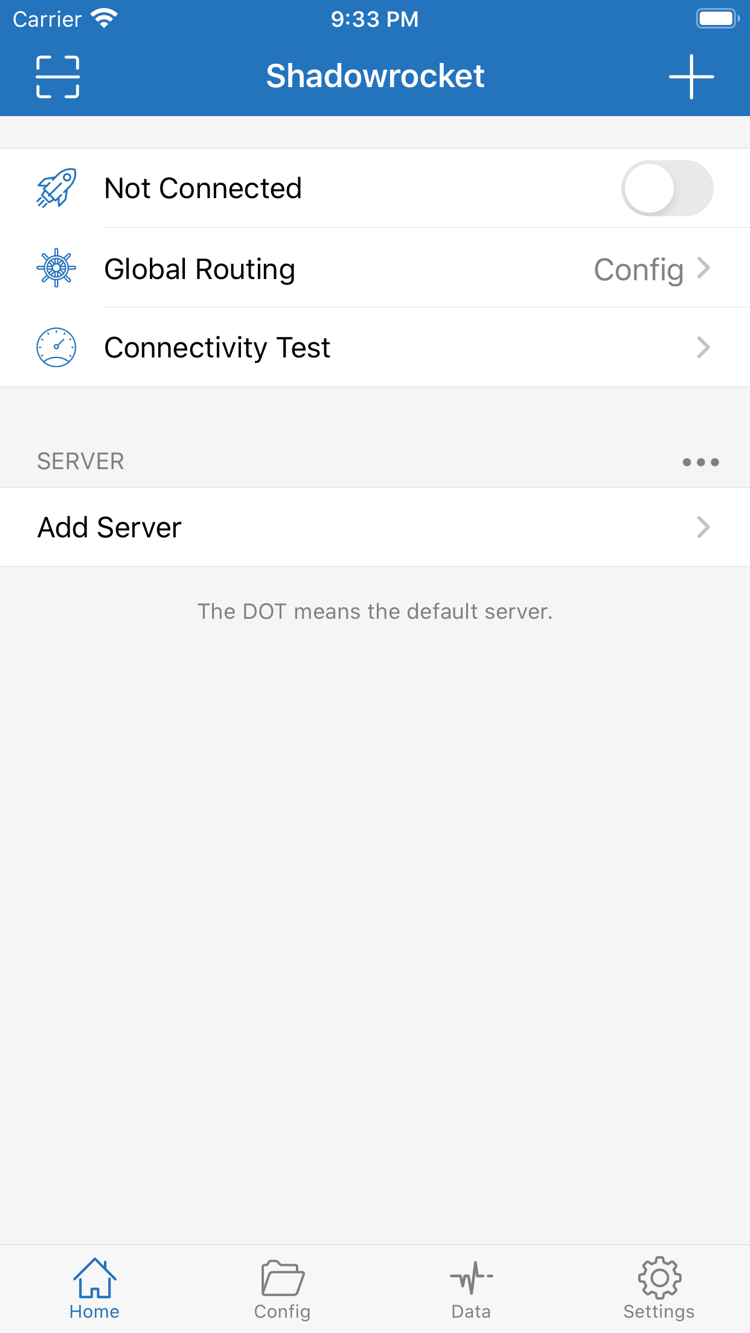
Verify the icon, developer, and app ID together
On the product page, first check the app name, Shadowrocket. Then confirm that it uses the official icon shown in this site’s header and verify the developer, Shadow Launch Technology Limited. The product page URL should include id932747118. Do not rely only on a search result’s name or a similar-looking image. The name helps identify the app; the developer and app ID provide further confirmation of the specific product.
After verification, check the purchase button, compatibility, and app details. Always refer to the App Store listing for system requirements; this manual does not promise support for a particular system version indefinitely. If the store says your device is incompatible, address the conditions listed there. Subscription and rule settings cannot change device compatibility.
Buying the app ≠ buying a connection plan
Purchasing Shadowrocket gives you the right to use the client app; it does not include a server, subscription, or connection service. This site does not provide, sell, or recommend servers or subscriptions. Instructions for adding a server or using Subscribe assume that you already have your own server details or subscription URL. If you do not, ask your service provider rather than treating your app purchase record as connection credentials.
The US storefront price is about $2.99 as a one-time purchase. Other storefronts show local currency; the final amount is shown at checkout. App purchase status and the validity of a connection service are managed separately. If a subscription expires, its URL becomes invalid, or server settings change, reinstalling the app will not restore the service. Check the service’s actual status separately.
On a new device, restore the purchase first, then restore your settings
After switching devices or deleting and reinstalling the app, sign in to the App Store with the Apple ID used for the original purchase. Find Shadowrocket in your purchases and check its product page status. If the store’s conditions are met, you can redownload it from your purchase history. Eligibility for redownload on iPhone and iPad under the same account, including Universal Purchase, depends on the App Store listing. Do not make a duplicate purchase just because another device shows a purchase button.
Restore the app and restore your settings as two separate steps. After getting the app, import your own subscription, check Config and Global Routing, and test the connection again. If you use an iCloud sync feature, first check what is actually synced. Account sign-in, app purchases, and configuration sync each have different scopes. Confirm them separately; purchase history does not save all network settings.
Check storefront availability and app updates separately
What appears in the store and whether the app is available to get may vary by account storefront. If you cannot find the app, the purchase status is unexpected, or checkout fails, first check the App Store purchase account, storefront, and messages on the product page. Before changing your account’s region, read the store’s guidance on existing purchases and account status. Temporarily switching regions is not a general troubleshooting step.
App updates are delivered through the App Store. Whether automatic updates run also depends on device settings and store status. You may want to save a copy of your current configuration before updating, then check your frequently used servers and rules afterward. App updates, subscription updates, and configuration file updates are separate operations: the first updates the client, the second refreshes entries from a source, and the third may change request matching and policies. Verify each separately.